Using the reader
Use the mouse on desktop and the controller laser in VR. You can pick the reader up and hold it at any angle.
Home
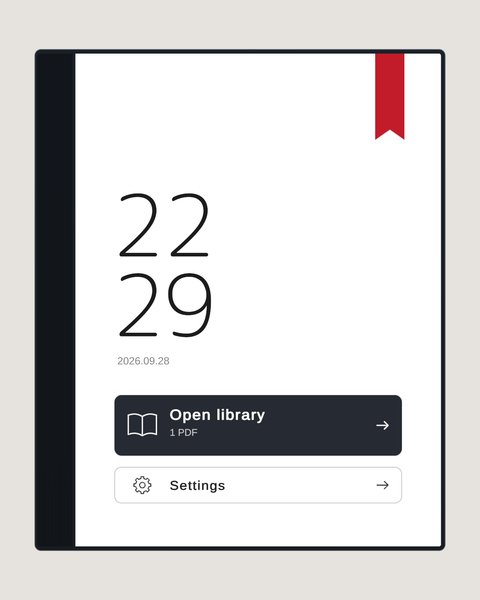
Open library shows your PDFs. If you have a saved position, the red bookmark at the top right resumes it.
Library
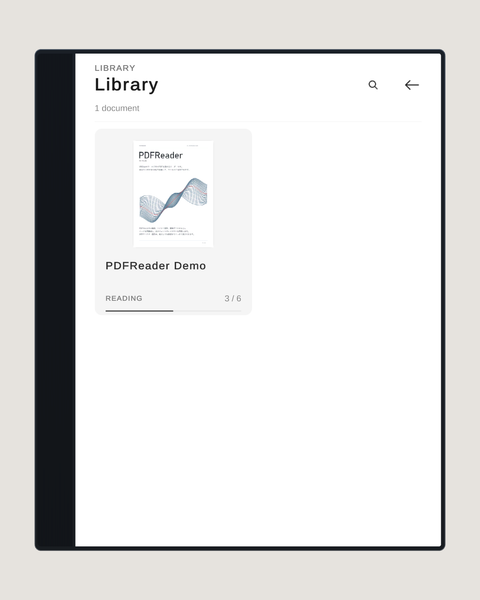
Choose a PDF to open it. The magnifier at the top right searches titles.
Reading
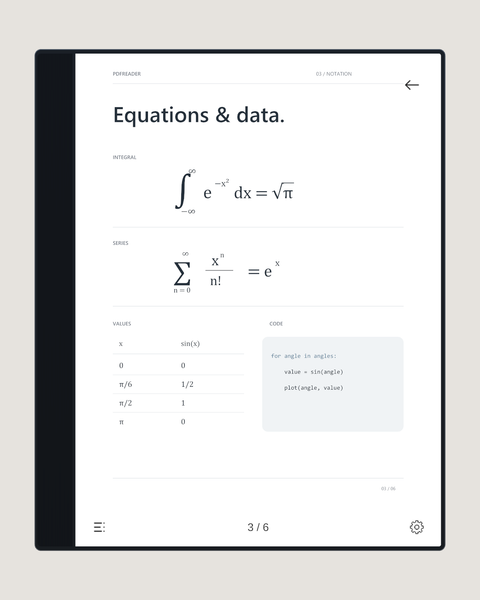
- Click the left or right edge of the page to turn pages. Hold to keep turning.
- When zoomed in, drag the centre of the page to move around.
- In VR, point at the page and use the right stick to zoom.
- On desktop, Q / E also turn pages while you hold the reader.
- Contents is at the bottom left, Settings at the bottom right, and Back at the top right.
Contents
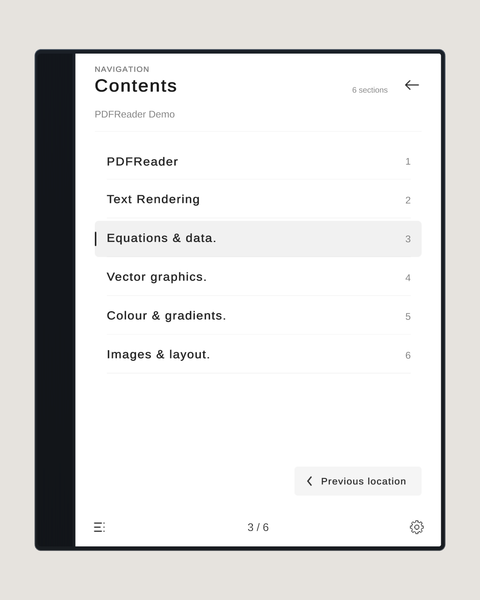
Choose a chapter to jump to it. This needs outline data in the source PDF.
Settings
Settings has three tabs: View, Display and Device.
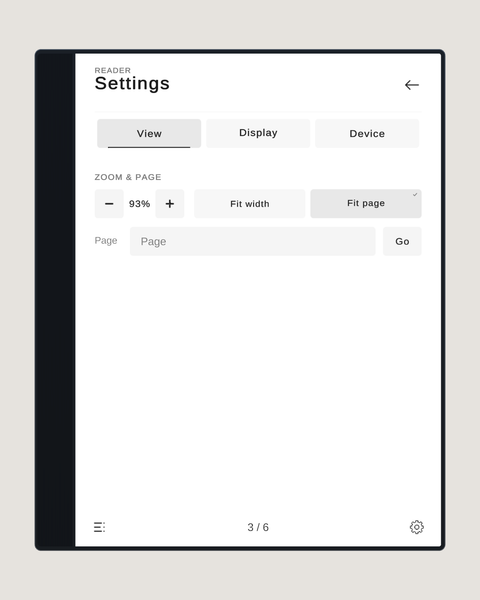
View: zoom, Fit width / Fit page, and go to a page number (only while a PDF is open).
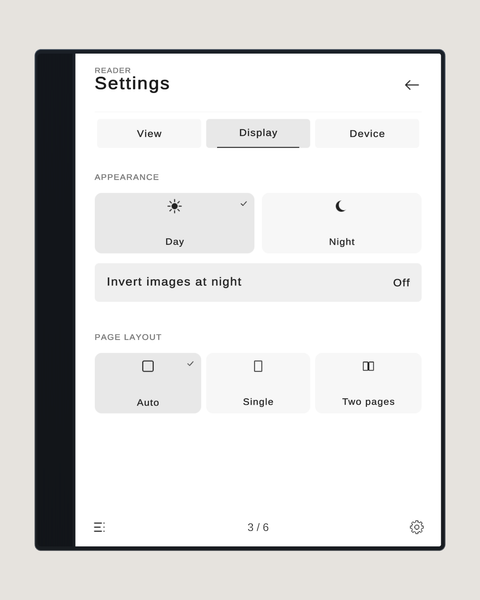
Display: Day / Night, invert images at night, and page layout (Auto, Single, Two pages).
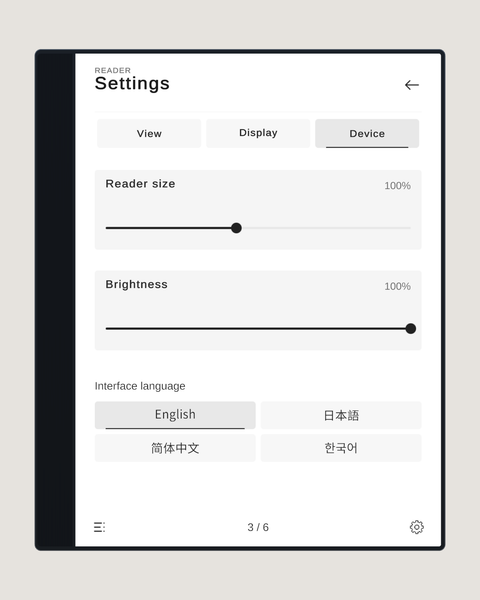
Device: reader size, brightness and interface language (English, 日本語, 简体中文, 한국어). If a player does not choose a language, it follows their VRChat language. Only the interface is translated; PDF content is shown as it is.
Sync
The open PDF, page, screen, zoom, position, Day / Night, brightness and reader size are synced to everyone in the instance. The interface language and saved reading positions are kept per player.