Adding PDFs
Tools > PDF Reader opens on the PDFs tab.
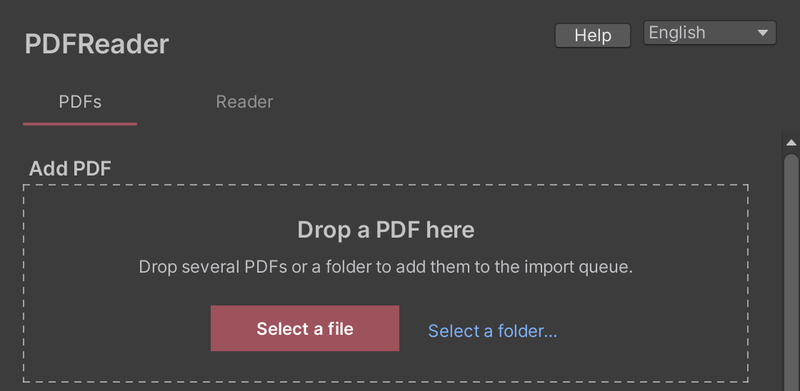
- Drag a PDF into the window, or click Select a file.
- Click Bake PDF. Progress is shown, and you can cancel at any time.
- When baking finishes, the PDF is added to your world. If the scene has no reader, one is placed automatically.
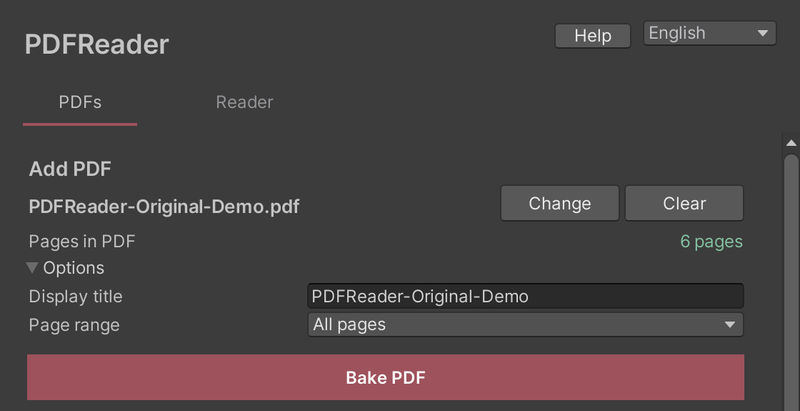
Under Options you can change the title shown in the library (the file name by default) and the page range to bake.
Baking several PDFs
Drop several PDFs or a folder to add them to the import queue. You can also use Select a folder…. Everything in the queue can be baked in one go.
Managing documents
The Documents section of the PDFs tab lists the PDFs in your world.
- Replace: update the document from another PDF. References in the world are kept.
- Remove: take it out of the world. The baked data stays under Not in the world, and Add puts it back.
- Delete (documents not in the world): delete the baked data. The source PDF is not affected. This cannot be undone.
When some pages are kept as images
After baking you may see “Some pages were kept as images”. Those pages are readable, but their text is less sharp when zoomed in. The log lists the reason for each page.
Do not delete files in Assets/PDFReader/Generated or Shared by hand. Remove documents from this window instead.
Check the display before uploading
Bake time and rendering load depend on the number of pages and the content of the PDF.
Unusual PDFs may display differently from the original. Check the added PDFs in the reader before uploading the world. If something looks different, see the FAQ.